Fuzio in SWT
This page describes how to configure a Maven project to use Fuzio with the SWT GUI toolkit.
Prerequisites
- Git.
- Java 17 or higher.
- Fuzio license key, or a free trial key.
Getting the project
The sample project described below in this guide can be found as the standalone repository on Gitee.
Project overview
This section explains how the Maven project is configured to include Fuzio and
how a Fuzio BrowserView component is embedded into an SWT shell to display content of the loaded web page.
Configuring the Maven project
The Maven project is configured to use the Fuzio Maven repository to fetch the necessary Fuzio dependencies and fetch the Chromium binaries for all platforms.
Here’s how the pom.xml file is configured:
<?xml version="1.0" encoding="UTF-8"?>
<project xmlns="http://maven.apache.org/POM/4.0.0"
         xmlns:xsi="http://www.w3.org/2001/XMLSchema-instance"
         xsi:schemaLocation="http://maven.apache.org/POM/4.0.0 http://maven.apache.org/xsd/maven-4.0.0.xsd">
    <modelVersion>4.0.0</modelVersion>

    <groupId>tech.fuzio.quickstart.maven</groupId>
    <artifactId>swt</artifactId>
    <version>1.0-SNAPSHOT</version>

    <properties>
        <!-- Use the latest stable Fuzio version. -->
        <fuzio.version>2026.9.0</fuzio.version>
        <swt.version>3.124.0</swt.version>

        <maven.compiler.source>17</maven.compiler.source>
        <maven.compiler.target>17</maven.compiler.target>

        <!-- Define the main class for the Java application. -->
        <exec.mainClass>SwtApp</exec.mainClass>
    </properties>

    <repositories>
        <repository>
            <id>maven-eclipse-repo</id>
            <url>https://repo1.maven.org/maven2/</url>
        </repository>

        <!-- Configures the Maven repository for Fuzio. -->
        <repository>
            <id>tech.fuzio</id>
            <url>https://jiku.mycloudrepo.io/public/repositories/releases</url>
        </repository>

    </repositories>

    <dependencies>
        <!-- Fetches Chromium binaries for all platforms. -->
        <dependency>
            <groupId>tech.fuzio</groupId>
            <artifactId>fuzio-cross-platform</artifactId>
            <version>${fuzio.version}</version>
            <type>pom</type>
        </dependency>

        <!-- Adds dependency to the SWT UI toolkit integration. -->
        <dependency>
            <groupId>tech.fuzio</groupId>
            <artifactId>fuzio-swt</artifactId>
            <version>${fuzio.version}</version>
        </dependency>

        <dependency>
            <groupId>org.eclipse.platform</groupId>
            <artifactId>${swt.artifactId}</artifactId>
            <version>${swt.version}</version>
        </dependency>
    </dependencies>

    <profiles>
        <profile>
            <id>linux</id>
            <activation>
                <os>
                    <name>Linux</name>
                    <arch>amd64</arch>
                </os>
            </activation>
            <properties>
                <swt.groupId>org.eclipse.platform</swt.groupId>
                <swt.artifactId>org.eclipse.swt.gtk.linux.x86_64</swt.artifactId>
            </properties>
        </profile>

         <profile>
            <id>linuxArm64</id>
            <activation>
                <os>
                    <name>Linux</name>
                    <arch>arm64</arch>
                </os>
            </activation>
            <properties>
                <swt.groupId>org.eclipse.platform</swt.groupId>
                <swt.artifactId>org.eclipse.swt.gtk.linux.aarch64</swt.artifactId>
            </properties>
        </profile>

         <profile>
            <id>linuxAarch64</id>
            <activation>
                <os>
                    <name>Linux</name>
                    <arch>aarch64</arch>
                </os>
            </activation>
            <properties>
                <swt.groupId>org.eclipse.platform</swt.groupId>
                <swt.artifactId>org.eclipse.swt.gtk.linux.aarch64</swt.artifactId>
            </properties>
        </profile>

        <profile>
            <id>windows</id>
            <activation>
                <os>
                    <family>Windows 10</family>
                    <arch>amd64</arch>
                </os>
            </activation>
            <properties>
                <swt.groupId>org.eclipse.platform</swt.groupId>
                <swt.artifactId>org.eclipse.swt.win32.win32.x86_64</swt.artifactId>
            </properties>
        </profile>

        <profile>
            <id>macosx</id>
            <activation>
                <os>
                    <name>Mac OS X</name>
                    <arch>x86_64</arch>
                </os>
            </activation>
            <properties>
                <swt.groupId>org.eclipse.platform</swt.groupId>
                <swt.artifactId>org.eclipse.swt.cocoa.macosx.x86_64</swt.artifactId>
            </properties>
        </profile>

        <profile>
            <id>macosx</id>
            <activation>
                <os>
                    <name>Mac OS X</name>
                    <arch>aarch64</arch>
                </os>
            </activation>
            <properties>
                <swt.groupId>org.eclipse.platform</swt.groupId>
                <swt.artifactId>org.eclipse.swt.cocoa.macosx.aarch64</swt.artifactId>
            </properties>
        </profile>
    </profiles>
</project>

</project>
Embedding Fuzio into SWT
In the SWT application source code you can see how to:
- Initialize an engine (Chromium) instance.
- Create a browser instance.
- Load the required web page.
- Embed a
BrowserViewcomponent into an SWT shell to display the loaded web page.
import static tech.fuzio.engine.RenderingMode.HARDWARE_ACCELERATED;

import tech.fuzio.engine.Engine;
import tech.fuzio.view.swt.BrowserView;
import org.eclipse.swt.layout.FillLayout;
import org.eclipse.swt.widgets.Display;
import org.eclipse.swt.widgets.Shell;

public final class SwtApp {

    public static void main(String[] args) {
        // Initialize Chromium.
        var engine = Engine.newInstance(HARDWARE_ACCELERATED);

        // Create a Browser instance.
        var browser = engine.newBrowser();

        // Load the required web page.
        browser.navigation().loadUrl("https://html5test.jiku.co");

        var display = new Display();
        var shell = new Shell(display);
        shell.setText("Fuzio SWT");
        shell.setLayout(new FillLayout());

        // Create and embed SWT BrowserView widget to display web content.
        var view = BrowserView.newInstance(shell, browser);
        view.setSize(1280, 800);

        shell.pack();
        shell.open();

        while (!shell.isDisposed()) {
            if (!display.readAndDispatch()) {
                display.sleep();
            }
        }
        // Shutdown Chromium and release allocated resources.
        engine.close();

        display.dispose();
    }
}
Run the SWT application
Use the following command to build and run SWT application:
mvn clean compile exec:java -Dfuzio.license.key=<your_license_key>
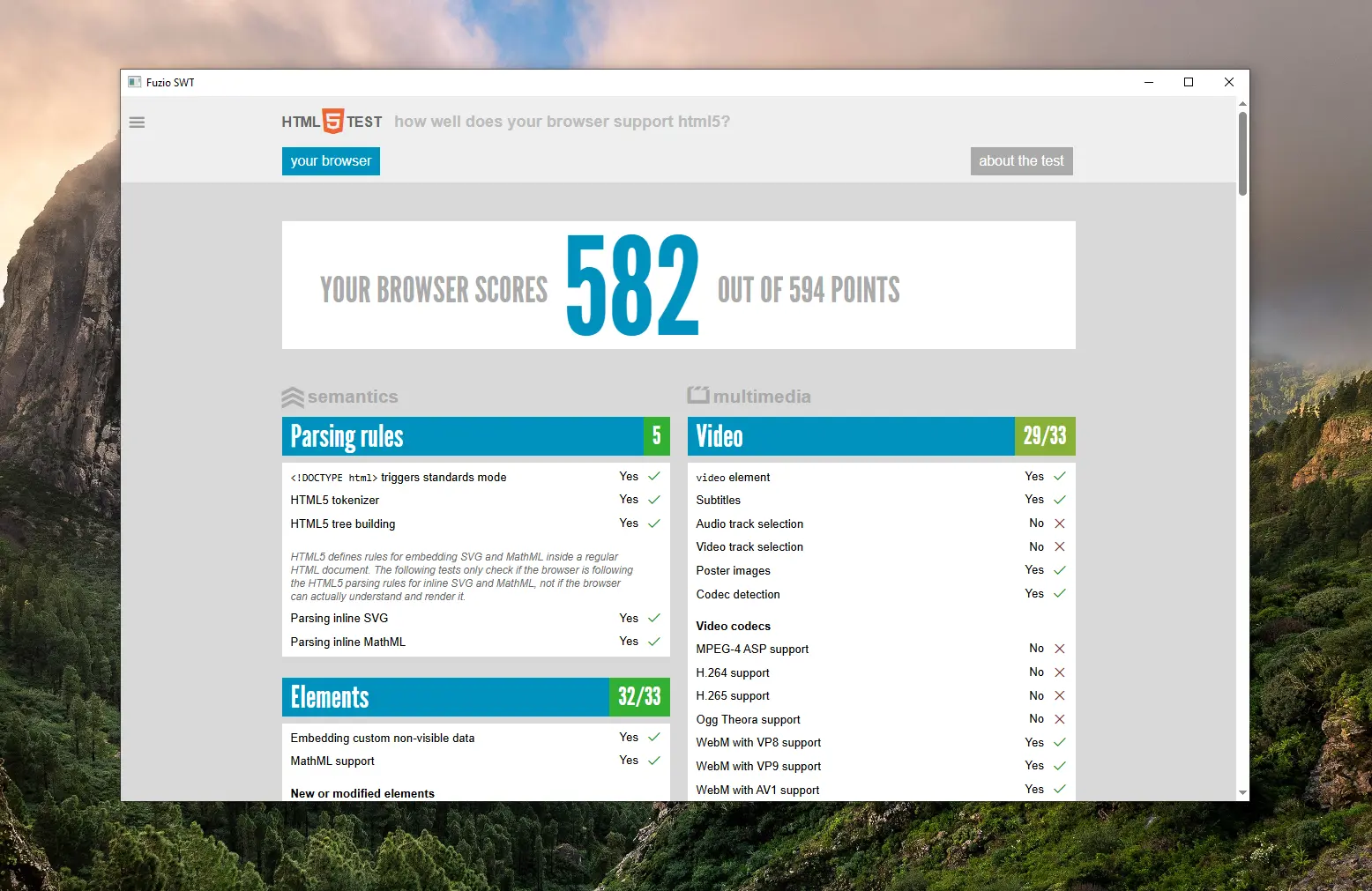
Once launched, you will see an SWT application with a BrowserView component displaying https://html5test.jiku.co:
What’s next
- Learn more how to add Fuzio to a Maven project.
- Read about how to embed Fuzio into an SWT app.
- Discover all Fuzio features by checking out our guides.