Fuzio in Compose Desktop
The easiest way to use Fuzio in a Compose Gradle project is to clone our pre-configured Gitee repository, where everything is set up and ready to run.
Prerequisites
- Git.
- Java 17 or higher.
- Fuzio license key, or a free trial key.
Getting the project
Clone the Gitee repository using the following command:
git clone https://gitee.com/jiku-technology-dev/fuzio-quickstart-gradle-compose.git
cd fuzio-quickstart-gradle-compose
Run the Compose application
Use the following command to build and run the Compose application:
./gradlew run -Dfuzio.license.key=<your_license_key>
Once launched, you will see a Compose application with a BrowserView component displaying https://html5test.jiku.co:
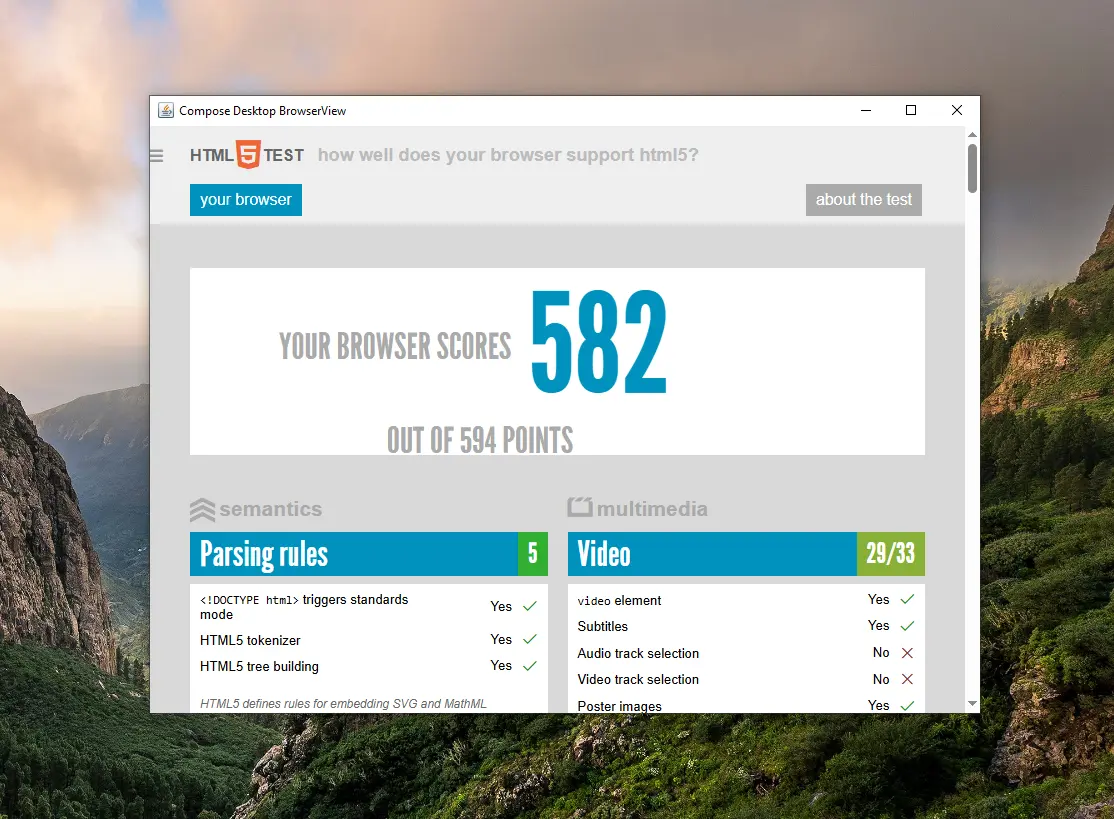
Project overview
This section describes how to configure the Gradle project to include Fuzio, and how to embed the Fuzio BrowserView component into a Compose Desktop scene to display loaded web content.
Configuring the Gradle project
The Gradle project uses the Fuzio Gradle plugin to add the required Fuzio dependencies and fetch the Chromium binaries for the current platform.
Here is how the build.gradle.kts file is configured:
plugins {
    java
    application
    kotlin("jvm") version "2.0.0"

    // Adds Fuzio dependencies.
    id("tech.fuzio.gradle") version "1.0.0"

    // Adds the Compose plugins for easy configuration.
    id("org.jetbrains.compose") version "1.10.3"
    id("org.jetbrains.kotlin.plugin.compose") version "2.3.20"
}

repositories {
    google()
    mavenCentral()
}

fuzio {
    // Use the latest stable Fuzio version.
    version = "2026.9.0"
}

application {
    // Define the main class for the Kotlin application.
    mainClass.set("tech.fuzio.quickstart.gradle.compose.AppKt")
}

dependencies {
    // Detects the current platform and adds the corresponding Chromium binaries.
    implementation(fuzio.currentPlatform)

    // Adds a dependency on the Compose Desktop UI toolkit integration.
    implementation(fuzio.compose)

    // Adds a dependency on the Compose Desktop UI toolkit for the current platform.
    implementation(compose.desktop.currentOs)
}

tasks.withType<JavaExec> {
    // Assign all Java system properties from the command line
    // to the JavaExec task in order to pass the Fuzio license key.
    systemProperties(System.getProperties().mapKeys { it.key as String })
}
Embedding Fuzio into Compose
The Compose Desktop application is written in Kotlin and uses the Compose Desktop UI toolkit to create a window with a BrowserView component that displays the content of the loaded web page:
import androidx.compose.runtime.DisposableEffect
import androidx.compose.ui.unit.dp
import androidx.compose.ui.window.WindowState
import androidx.compose.ui.window.singleWindowApplication
import tech.fuzio.dsl.Engine
import tech.fuzio.dsl.browser.navigation
import tech.fuzio.engine.RenderingMode.OFF_SCREEN
import tech.fuzio.view.compose.BrowserView

fun main() {
    // Initialize Chromium.
    val engine = Engine(OFF_SCREEN)

    // Create a Browser instance.
    val browser = engine.newBrowser()

    singleWindowApplication(
        title = "Compose Desktop BrowserView",
        state = WindowState(width = 700.dp, height = 500.dp),
    ) {
        // Add a BrowserView composable to display web content.
        BrowserView(browser)

        DisposableEffect(Unit) {
            browser.navigation.loadUrl("https://html5test.jiku.co")
            onDispose {
                // Shutdown Chromium and release allocated resources.
                engine.close()
            }
        }
    }
}
What’s next
- Learn more about how to add Fuzio to a Gradle project.
- Read about how to embed Fuzio into a Compose app.
- Discover all Fuzio features by checking out our guides.